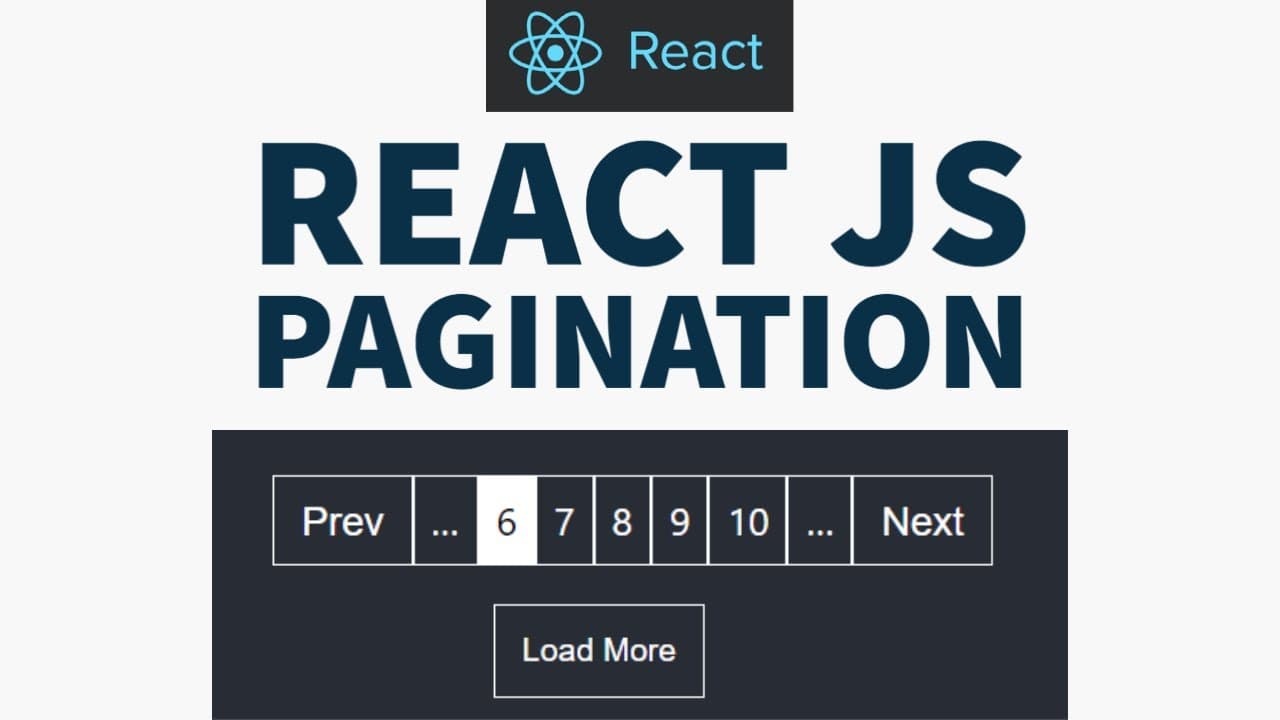
Build A Custom Pagination Component In Reactjs From Scratch
9 min readWhy Pagination Matters in Real-World React Applications
As React developers, we often work with data-heavy applications—blogs, dashboards, admin panels, and e-commerce platforms. One common mistake beginners make is rendering all available data on a single page.
While this might work for small datasets, it quickly becomes a problem as your application grows. Large DOM trees reduce performance, increase memory usage, and create a poor user experience.
This is where pagination becomes not just useful—but essential.
Real-World Examples of Pagination
Pagination is everywhere, even if we don’t consciously notice it. Some common real-world use cases include:
Blogs & Articles
Instead of loading hundreds of posts, blogs show 5–10 posts per page.
E-commerce Products
Product listings are split across pages to improve load time.
Admin Dashboards
User data, logs, and reports are paginated for clarity.
Search Results
Search engines paginate results to reduce overload.
Rendering large lists without pagination leads to:
- Slow page load times
- Laggy scrolling and poor responsiveness
- High memory usage
- Bad user experience on mobile devices
Now that we understand why pagination is necessary, the next step is understanding how pagination actually works behind the scenes.
In the next section, we’ll break down the core pagination logic in the simplest possible way.
Understanding Pagination Logic from Scratch
Before writing any React code, it’s important to clearly understand the logic that powers pagination. Once the logic is solid, implementing it in React becomes straightforward.
Total Items
The total number of records you want to display.
Items Per Page
How many items should appear on a single page.
Current Page
The page number the user is currently viewing.
Pagination is essentially a mathematical problem. Once we know how many items we have and how many we want to show per page, we can calculate everything else.
The most important calculation is determining the total number of pages. This ensures we don’t miss any data when the number of items doesn’t divide evenly.
Calculating Total Pages
const itemsPerPage = 5;
const totalItems = data.length;

const totalPages = Math.ceil(totalItems / itemsPerPage);
The Math.ceil() function ensures that any remaining items still get their own page instead of being ignored.
Example Scenario
If you have 22 items and show 5 items per page, the result would be:
22 ÷ 5 = 4.4 → 5 total pages
Why This Matters
Without rounding up, the last few items would never be displayed, leading to data loss in the UI.
Now that we understand the mathematical foundation of pagination, the next step is applying this logic inside a React component.
In the next section, we’ll manage pagination state using React hooks and dynamically update the UI.
Managing Pagination State in React
Now that we understand the logic behind pagination, it’s time to bring that logic to life using React. State management plays a crucial role here, as pagination is inherently dynamic and user-driven.
At the heart of pagination lies the concept of the current page. Every time the user clicks a page number or navigation button, the current page changes — and React re-renders the UI accordingly.
We can easily manage this using React’suseState hook.
Tracking the Current Page
import { useState } from "react";

const [currentPage, setCurrentPage] = useState(1);
We initialize the page to 1 because pagination usually starts from the first page. Each interaction updates this state.
Displaying Data for the Active Page
Once we know the current page, we need to determine which items from the dataset should be displayed. This is done using simple index calculations and array slicing.
const itemsPerPage = 5;

const indexOfLastItem = currentPage * itemsPerPage;
const indexOfFirstItem = indexOfLastItem - itemsPerPage;

const currentItems = data.slice(
  indexOfFirstItem,
  indexOfLastItem
);
This approach ensures that only the relevant subset of data is rendered on the page, keeping the UI fast and responsive.
How the Indexing Works
If the current page is 2 and items per page is 5, the slice will include items from index 5 to 9.
Why This Is Efficient
React only renders a small number of elements instead of the entire dataset, which dramatically improves performance.
💡 UX Tip: Reset the current page to 1 whenever the dataset changes (for example, after a search or filter).
At this point, we have all the logic needed to display paginated data. What’s missing is a user interface that allows users to navigate between pages.
In the next section, we’ll build an interactive pagination UI with page numbers, next/previous buttons, and active states.
Building an Interactive Pagination UI
Now that the logic and state management are in place, it’s time to build the pagination interface. This is the part users interact with directly, so clarity, accessibility, and feedback are extremely important.
Previous Button
Allows users to move back one page.
Page Numbers
Let users jump directly to a specific page.
Next Button
Moves users forward one page.
Generating Page Numbers Dynamically
Page numbers should be generated based on the total number of pages, ensuring flexibility regardless of dataset size.
const pages = Array.from(
  { length: totalPages },
  (_, index) => index + 1
);
This approach dynamically creates page numbers starting from 1 up to the total number of pages.
Rendering Pagination Buttons
<div className="flex items-center gap-2">
  {pages.map((page) => (
    <button
      key={page}
      onClick={() => setCurrentPage(page)}
      className={
        page === currentPage
          ? "bg-primary text-white"
          : "bg-transparent"
      }
    >
      {page}
    </button>
  ))}
</div>
Clicking a page number updates the state, triggering a re-render and displaying the corresponding data.
Active Page Feedback
Highlighting the active page improves usability and helps users understand their current position.
Visual Consistency
Use consistent spacing, colors, and hover effects to create a polished experience.
Previous & Next Buttons
<button
  onClick={() => setCurrentPage((prev) => prev - 1)}
  disabled={currentPage === 1}
>
  Previous
</button>

<button
  onClick={() => setCurrentPage((prev) => prev + 1)}
  disabled={currentPage === totalPages}
>
  Next
</button>
Disabling navigation buttons when users reach the beginning or end prevents invalid page navigation.
🎯 UX Insight: Buttons should provide immediate visual feedback through hover, active, and disabled states.
At this stage, we have a fully functional pagination component with a polished UI. However, great components go beyond basic functionality.
In the final section, we’ll enhance accessibility, performance, and discuss real-world improvements.
Taking Pagination to Production Level
A pagination component isn’t truly complete until it’s accessible, performant, and adaptable to real-world scenarios. In this final section, we’ll focus on polishing the component so it’s ready for production use.
Improving Accessibility (A11y)
Accessibility ensures that your pagination component can be used by everyone, including users who rely on keyboards or screen readers.
- Use semantic
buttonelements - Add
aria-labelattributes - Ensure proper focus styles for keyboard navigation
<button
  aria-label="Go to page 2"
  onClick={() => setCurrentPage(2)}
>
  2
</button>
Performance Considerations
Pagination significantly improves performance by limiting how many elements are rendered at a time. However, there are additional steps you can take to optimize further.
Client-Side Pagination
Ideal for small to medium datasets where all data is already available in memory.
Server-Side Pagination
Recommended for large datasets. Fetch only the required data for the current page from the backend.
Real-World Enhancements
Once the basics are implemented, you can enhance your pagination component with advanced features:
- Sync page number with URL query parameters
- Add smooth scroll-to-top on page change
- Animate page transitions using Framer Motion
- Display ellipsis for large page ranges
Always test pagination on mobile devices. Touch targets should be large enough and spacing should prevent accidental clicks.
Final Thoughts
Building a custom pagination component in React from scratch is more than just a UI exercise. It reinforces fundamental concepts such as state management, conditional rendering, and performance optimization.
With the techniques covered in this guide, you can confidently build scalable, accessible, and user-friendly pagination systems for any React or Next.js application.
Mastering small components like pagination is what turns good developers into great ones 🚀